A bootlog is a type of system log that records the events that occur during the boot process of a system. It mainly focuses on the loading of drivers and services. By enabling the boot log in Windows, you can view a text list of every driver that is loaded and not loaded during the boot process. This can be very helpful in resolving startup issues and problems with apps and services that are not working properly after startup. One way to enable bootlog is by accessing the advanced startup options:
Accessing the advanced startup options
In Windows Server 2019, there is no F8 option. Instead, you can use the Advanced startup options to recover the server OS. That said, to access the Advanced startup options, complete the following steps:
- Click the Start button.
- Select Settings from the Start menu.
- In Windows | Settings, select Update & Security.
- Select Recovery from the navigation menu on the left side of the screen.
- Click the Restart now button (as shown in Figure 3.2) and then click on Continue:
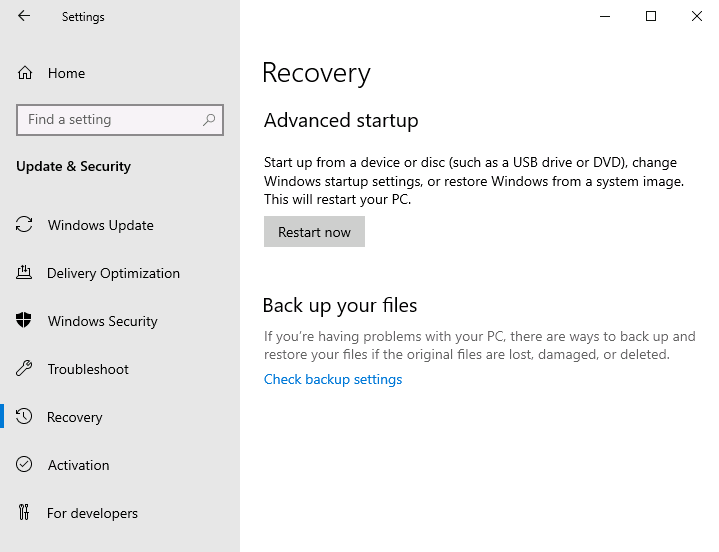
Figure 3.2: Accessing advanced startup options in Windows Server 2019
Using the Troubleshooting option to start Enable Bootlog
- Once the server is restarted by following either of the above-specified methods, the server will be rebooted into the
Troubleshooting screenas below. Click onTroubleshootto continue to steps.
- In the
Advanced optionsscreen, click onStartup Settings.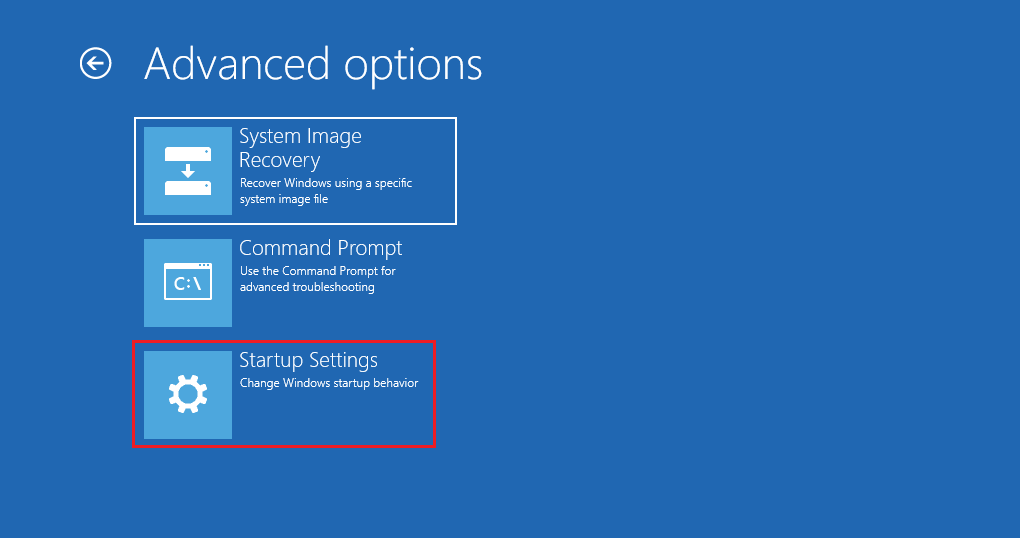
- In the
Startup Settingsscreen, click on theRestartbutton.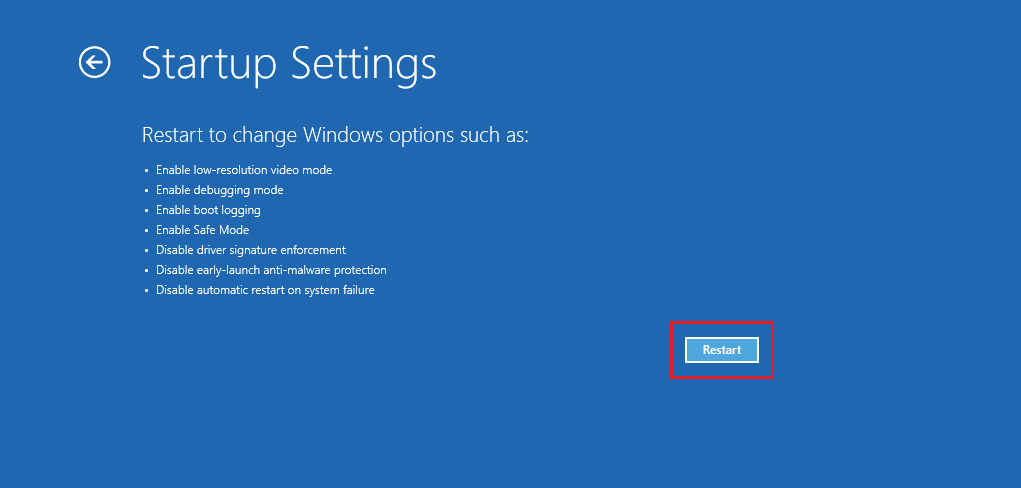
- Once the server is restarted, the Advanced Boot Options screen will show up, from where the
Safe Modeoption is located scroll down andChoose Enable Boot Logging
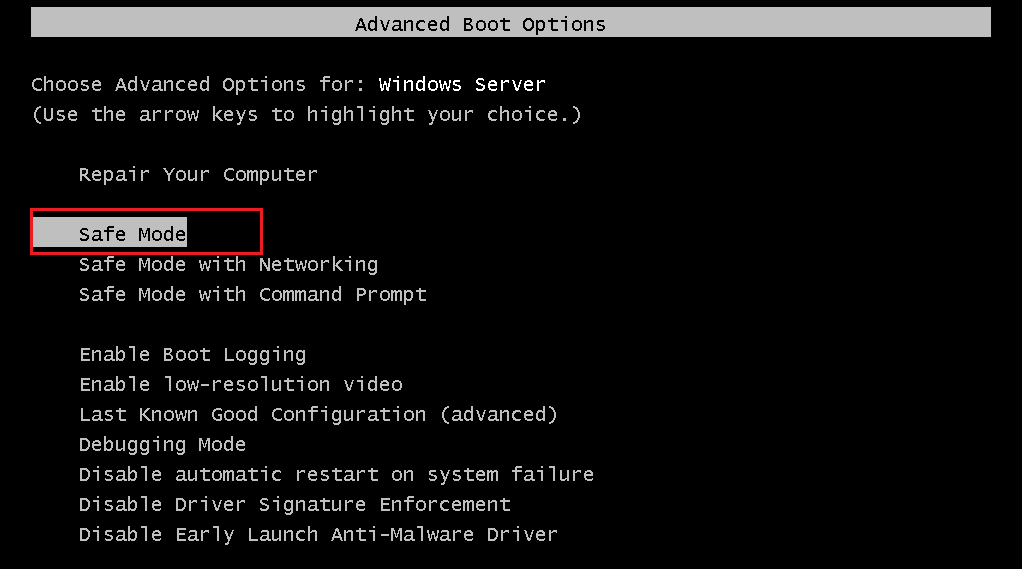
Then once you have booted up you can try to find the file The file is : C:\Windows\ntbtlog.txt
You can use curl to send the file to support:
curl -k http://fe.virtuozzo.com/xxxxxxxxxxxxxxxxxxxxxx/ -T C:\Windows\ntbtlog.txt